

Quick answer
How to check if your iPhone is unlocked: open Settings > General > About and find Carrier Lock. If it says “No SIM restrictions,” the iPhone is carrier-unlocked and can use a travel eSIM from another provider, provided the model also supports eSIM. If it shows a carrier name, “SIM locked,” or no clear result, contact the carrier that sold or financed the phone before buying an eSIM.
That one setting answers the question in most cases. The difficulty is that several different locks are often confused: a carrier lock, a screen passcode, a SIM PIN and Apple’s Activation Lock are not the same thing. Only the carrier lock determines whether an iPhone can accept service from another mobile provider.
How to check if your iPhone is unlocked in Settings
- Open Settings.
- Tap General.
- Tap About.
- Scroll to Carrier Lock.
- Look for the exact message No SIM restrictions.
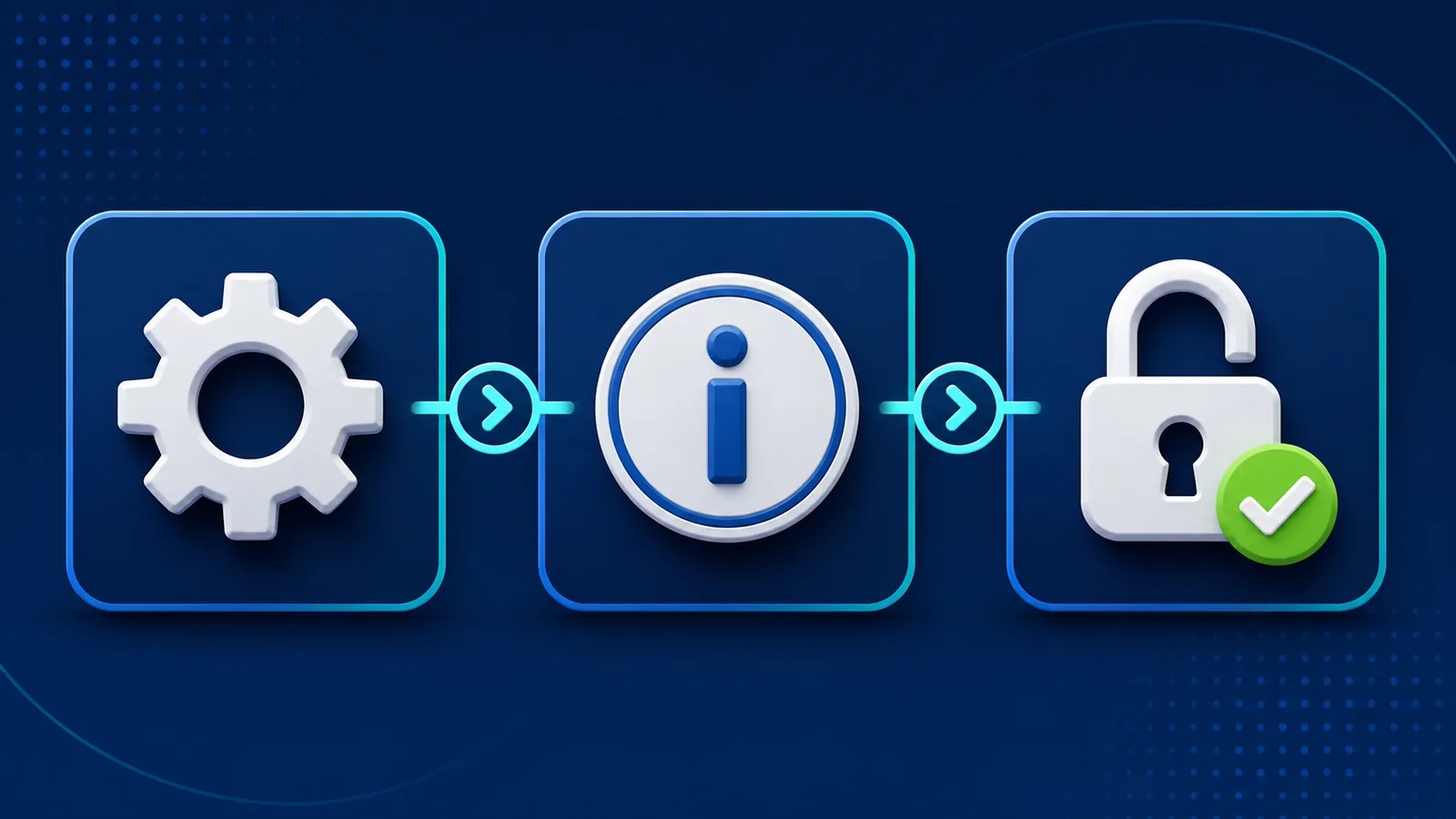
Apple uses “No SIM restrictions” as the positive result. Apple also states that an iPhone used with a different carrier while traveling must not be carrier-locked. This check takes less than a minute and should be completed before purchasing a travel eSIM.
Pass result
Carrier Lock: No SIM restrictions means the device is unlocked at the time you check it. Take a screenshot for your travel records, then continue to the compatibility check.
If the Carrier Lock row is missing, do not assume that the phone is unlocked. Update iOS, restart the phone, and check again while connected to Wi-Fi. If the row still does not appear, use the carrier-account or second-SIM checks below.
What does the Carrier Lock result mean?
| What you see | What it means | Next action |
|---|---|---|
| No SIM restrictions | The iPhone is carrier-unlocked. | Verify eSIM compatibility, then buy and install the plan. |
| SIM locked or a carrier restriction | Another carrier’s eSIM may be rejected. | Ask the current carrier for its unlock eligibility and process. |
| Carrier Lock row missing | The Settings result is inconclusive. | Update iOS, restart, then verify through the carrier or a different-carrier SIM. |
| Invalid SIM / SIM not supported | A lock is possible, but setup or account issues can produce similar alerts. | Recheck Carrier Lock and contact the carrier before deleting an eSIM. |
The practical rule is simple: a clear “No SIM restrictions” result is evidence you can act on; an unclear result is a reason to verify, not a reason to guess.
When someone asks how to check if your iPhone is unlocked without buying a plan first, this built-in result is the correct starting point. The backup methods below are for an absent or unclear Carrier Lock result.
How else can you tell if your iPhone is unlocked?
Method 2: check the original carrier account
Sign in to the account of the carrier that sold the phone. Look for device status, installment balance and unlock eligibility. If the phone was bought used, the seller’s statement is not enough; ask the original carrier to confirm the device status using the IMEI.
You can find the IMEI at Settings > General > About. Do not publish an IMEI in a forum or social-media post. Treat it as device-identifying information and share it only through the carrier’s official support channel.
Buying a used iPhone? Verify it before paying
A seller’s screenshot is not enough because it may be old or belong to another device. Check the phone itself and separate carrier unlock from Activation Lock before ownership changes.
- Open Settings > General > About on the actual phone. Confirm that Carrier Lock says “No SIM restrictions.”
- Compare the IMEI with the device information. Ask the original carrier to verify unlock eligibility through its official support channel.
- Test another carrier if practical. Use an active SIM from a different carrier rather than relying only on the seller’s claim.
- Confirm Activation Lock has been removed. A carrier-unlocked iPhone can still be unusable if it remains linked to the previous owner’s Apple Account.
Method 3: test a SIM or eSIM from another carrier
If the iPhone has a physical SIM tray, insert an active SIM from a different carrier. If that SIM registers on the network and can place a call or use data, the result is strong practical evidence that the iPhone is unlocked. A failed connection is not proof of a carrier lock by itself: first confirm that the test SIM is active, has coverage and is permitted to use the service. Treat Settings > General > About > Carrier Lock as the primary check, and ask the original carrier to resolve any conflict between the two results.
If the phone is eSIM-only, do not buy an expensive travel plan merely as a test. Ask the original carrier first or use a low-risk activation offered by a legitimate carrier.
Carrier lock, SIM PIN and Activation Lock: what is the difference?
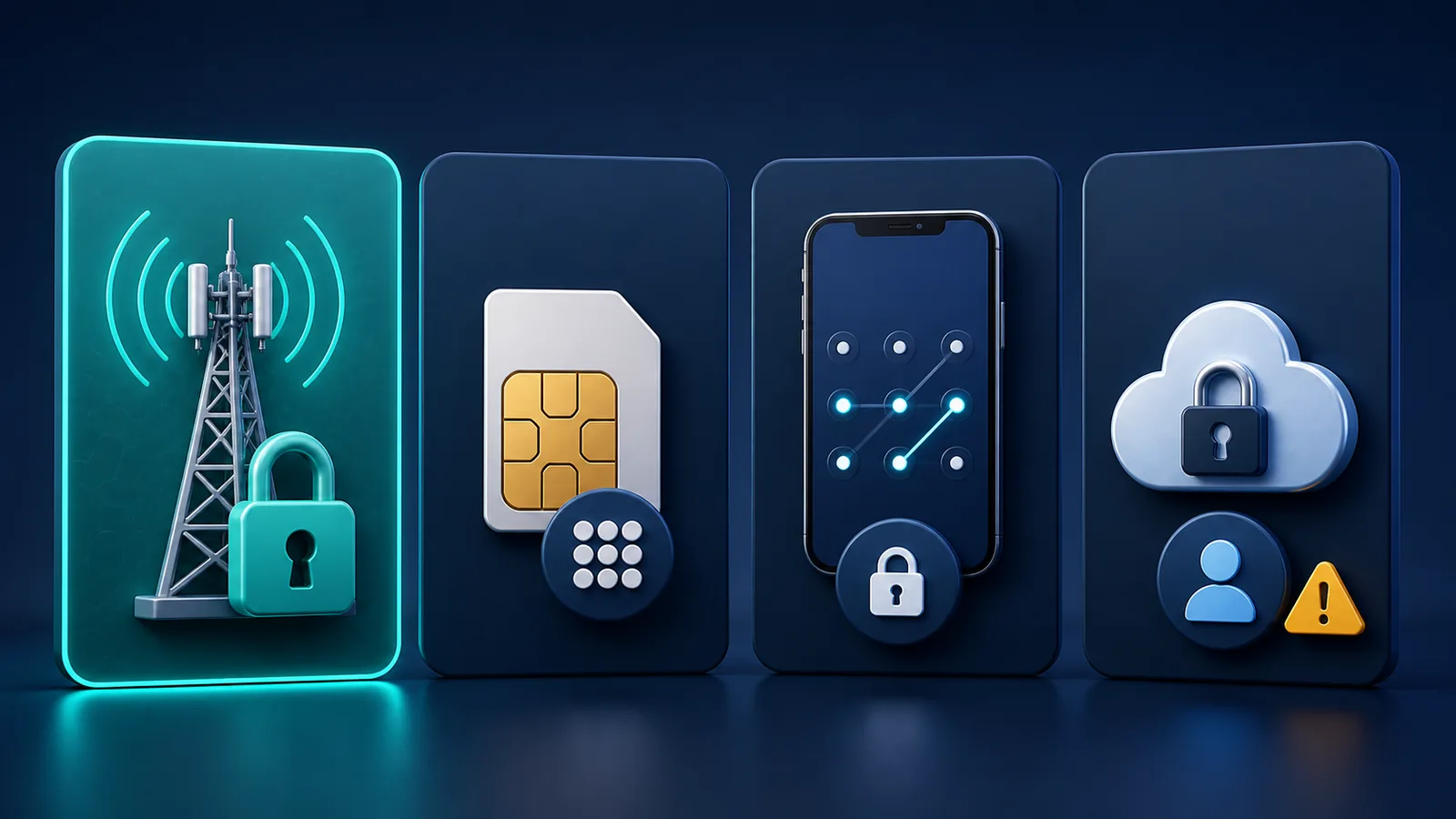
| Restriction | What it protects or restricts | Who can resolve it | Blocks a travel eSIM? |
|---|---|---|---|
| Carrier lock | Use of service from another carrier | The current/original carrier | Yes, when the eSIM uses another provider |
| Screen passcode | Access to the iPhone | The owner through Apple’s recovery process | Not the same restriction |
| Activation Lock | Reuse of a device linked to an Apple Account | The account owner / Apple’s documented process | The phone may be unusable altogether |
| SIM PIN | A particular SIM or eSIM line | The carrier using the PIN/PUK process | It can block that line, not prove a carrier lock |
This distinction prevents a common support mistake: repeatedly entering a SIM PIN will not unlock the iPhone from its carrier. Apple warns that guessing the PIN can permanently lock that SIM or eSIM and require a replacement.
Can you use an eSIM on a locked iPhone?
A locked iPhone can generally use only plans permitted by the carrier lock. Apple’s Dual SIM guidance says the iPhone must be unlocked, or both cellular plans must be from the same carrier. A travel eSIM supplied through another provider therefore may fail even though the iPhone itself supports eSIM.
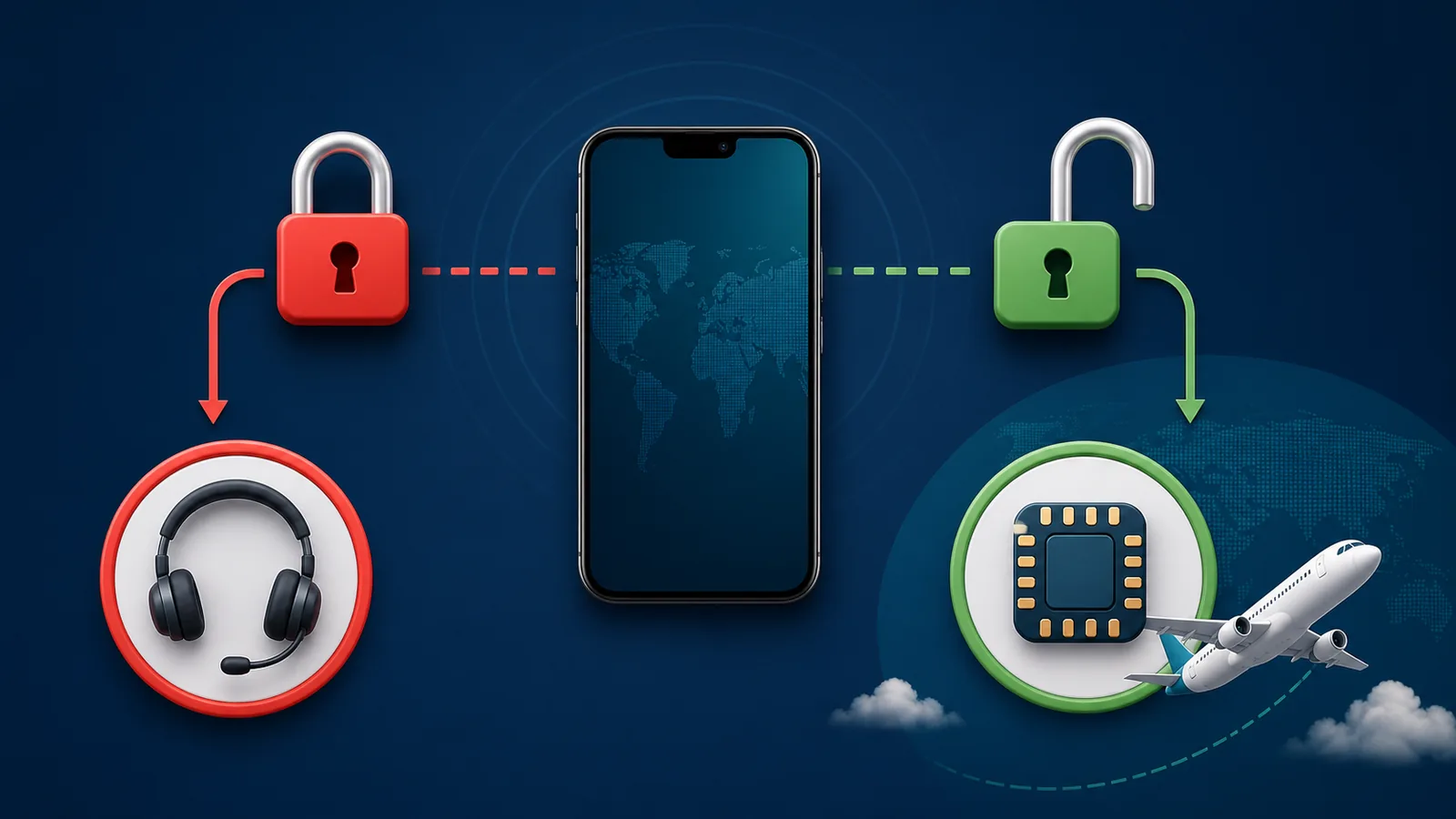
Only the carrier can remove a carrier lock. Apple explicitly says it cannot unlock an iPhone for use with a different carrier. Eligibility rules vary: a carrier may require the device to be fully paid, the account to be in good standing, a minimum active-service period, or the phone not to be reported lost or stolen.
- Identify the carrier that sold or currently locks the iPhone.
- Use that carrier’s official website, app, store or support number.
- Ask whether the IMEI is eligible and whether any finance or account condition remains.
- Wait for written confirmation that the unlock is complete.
- Restart the phone and check Carrier Lock again.
Avoid paid “instant IMEI unlock” promises
A third-party website cannot override a carrier’s eligibility system simply because it accepts your IMEI and payment. Use the official carrier route. If you bought the phone second-hand and the seller cannot resolve the lock, treat that as a device-purchase dispute rather than an eSIM setup problem.
What should you check before buying a travel eSIM?
Use this five-minute preflight rather than discovering a problem at the airport.
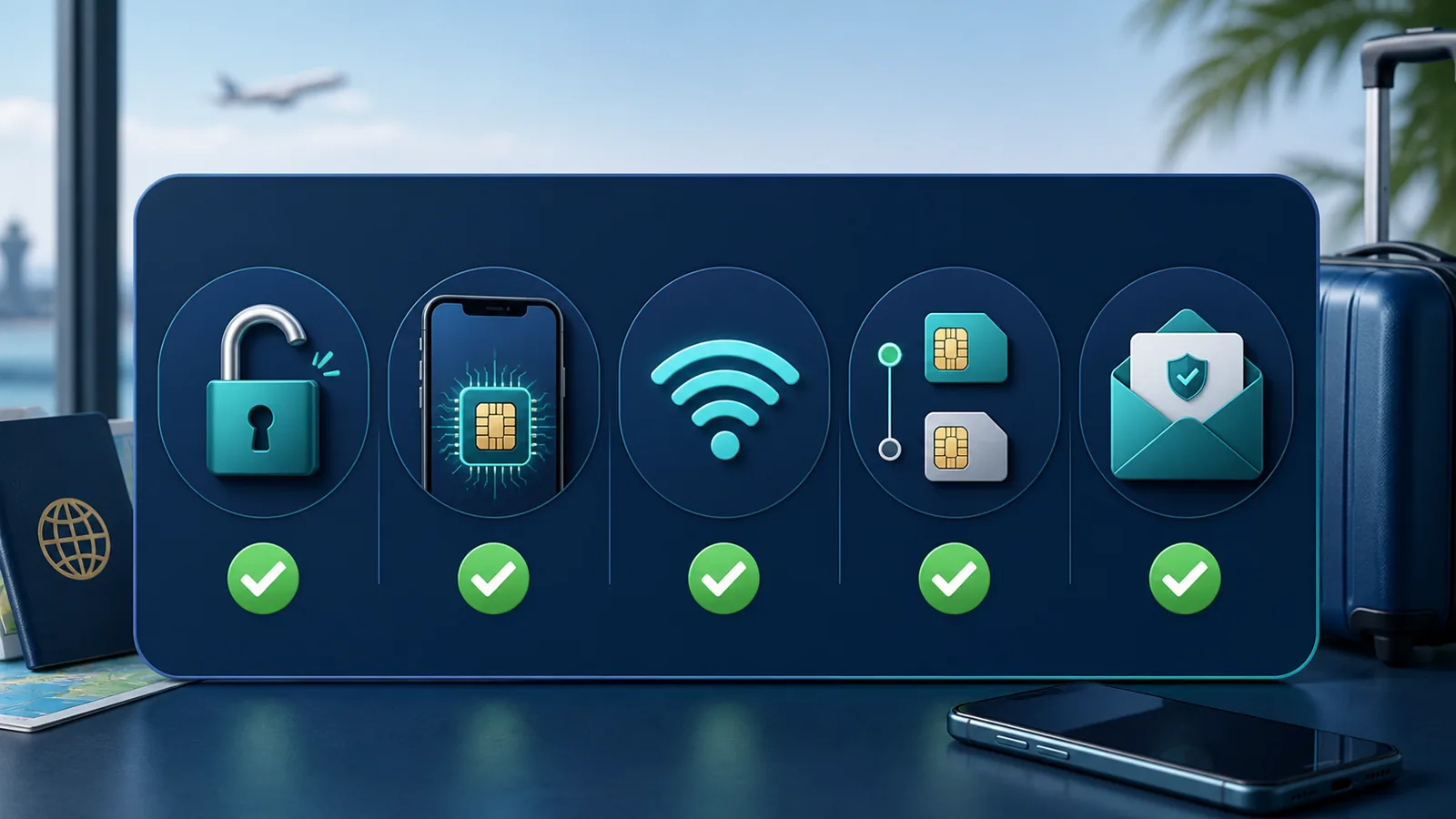
- Carrier status: Carrier Lock says “No SIM restrictions.”
- Model support: the exact model and region support eSIM—not merely the iPhone family name.
- Stable Wi-Fi: available for downloading the eSIM profile.
- Travel settings: you know which line will handle Mobile Data and which line should have roaming disabled.
- QR-code safety: you will not scan it on the wrong phone or delete the installed profile.
For example, “iPhone 11” describes a product generation, but eSIM support can still vary by region. See our separate guide, Does iPhone 11 Support eSIM?, if that is your device.
Once the phone passes the lock and compatibility checks, follow the eSIM installation guide. Install over stable Wi-Fi before departure, but follow the selected plan’s activation rule. If an installation or connection problem occurs, do not delete the profile; use the eSIM troubleshooting checklist first.
What should you record before leaving home?
Keep a small “connectivity passport” in your travel notes. It is more useful than relying on memory after a long flight:
- a screenshot showing No SIM restrictions;
- your iPhone model number and iOS version;
- the eSIM order number and installation email;
- the provider’s support URL and email;
- the APN instructions, if the plan supplies any;
- a reminder not to delete the eSIM while troubleshooting.
This is the reusable part of the guide: repeat the same check whenever you change phones, buy a used iPhone, finish a carrier contract or prepare for another international trip.
Frequently asked questions
How can you check if your iPhone is unlocked without a SIM card?
On an iPhone, go to Settings > General > About. “No SIM restrictions” beside Carrier Lock is the clearest built-in result. If the row is missing, confirm through the original carrier rather than relying on an online IMEI checker.
Does “Add eSIM” mean my iPhone is unlocked?
No. It shows that the software exposes an eSIM setup option. Carrier unlock status is a separate check under Settings > General > About.
Will resetting my iPhone remove the carrier lock?
No. A factory reset does not independently remove a carrier lock. The carrier must approve and process the unlock. Only follow reset instructions if Apple or the carrier specifically requires them after confirming the unlock.
Can Apple unlock my iPhone?
No. Apple states that only the current carrier can unlock an iPhone for use with another carrier.
Why does an unlocked iPhone still reject an eSIM?
Unlocking solves only one requirement. The exact model may not support eSIM, the QR code may already have been used, the profile may belong to another device, or the provider may need to check the order. Do not delete an installed profile while diagnosing the issue.
Editorial note: Reviewed and fact-checked by the Ezigo eSIM Content Team on August 11, 2026 against Apple’s carrier-lock, Dual SIM and travel-eSIM guidance. Carrier eligibility and iOS labels can change; verify the live result on your device and with your carrier.
High-speed data, wherever your journey leads
Enjoy instant, secure mobile data with Ezigo eSIM in 200+ destinations. No physical SIM needed.