

Quick answer
Does iPhone 11 support eSIM? Yes—most models sold outside China mainland, Hong Kong and Macao do. The iPhone 11, iPhone 11 Pro and iPhone 11 Pro Max can normally use one nano-SIM and one eSIM together. Before buying a plan, check that Add eSIM and an EID appear in Settings and that Carrier Lock says No SIM restrictions.
The short answer to “does iPhone 11 support eSIM?” is yes, but the model name alone is not enough. The original sales region and carrier-lock status decide whether a particular phone can install a travel eSIM. This guide shows you how to verify the device, understand the regional exceptions, install a plan and configure Dual SIM without accidentally using roaming data on your home line.
Does iPhone 11 support eSIM? Compatibility at a glance
| Model | Most markets | China mainland, Hong Kong and Macao models | Active-line limit |
|---|---|---|---|
| iPhone 11 | Nano-SIM + eSIM | Two nano-SIMs; no eSIM | One physical SIM + one eSIM |
| iPhone 11 Pro | Nano-SIM + eSIM | Two nano-SIMs; no eSIM | One physical SIM + one eSIM |
| iPhone 11 Pro Max | Nano-SIM + eSIM | Two nano-SIMs; no eSIM | One physical SIM + one eSIM |
Apple describes the standard iPhone 11 generation as a Dual SIM device using a physical nano-SIM and an eSIM. It can keep both lines active for standby, although only one line uses cellular data at a time. The iPhone 11 cannot keep two eSIMs active simultaneously; Apple introduced that capability with the iPhone 13 generation. See Apple’s official Dual SIM with eSIM guidance.
The iPhone 11 is also a 4G LTE phone, not a 5G model. An eSIM can change the carrier or data plan you use, but it cannot add 5G hardware to the device.
Do not buy based on the model name alone. A used or imported iPhone may have been manufactured for a different market. The checks below confirm the actual phone in your hand.
How to check iPhone 11 eSIM support before buying a plan
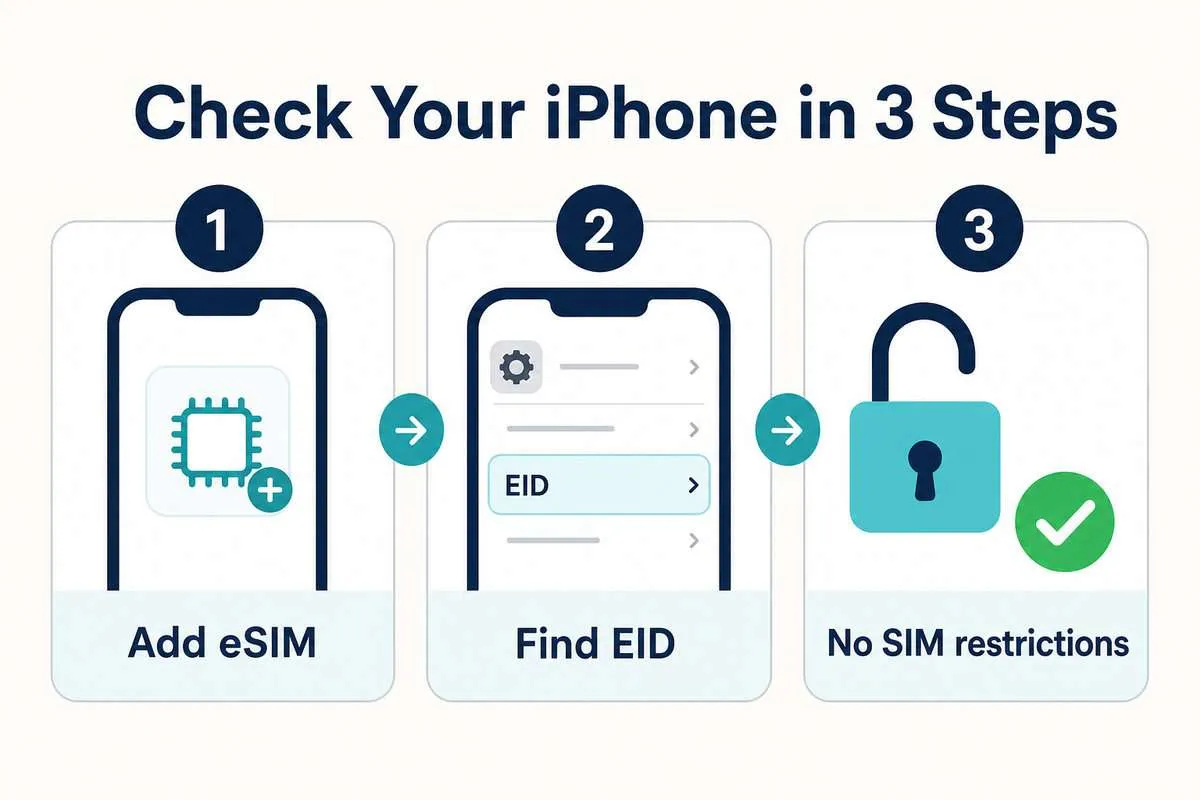
Three checks usually tell you whether the phone is ready. Complete all three because finding an eSIM menu does not automatically mean the device is unlocked for another provider.
1. Look for Add eSIM
- Open Settings.
- Tap Cellular or Mobile Data.
- Look for Add eSIM or, on an older iOS version, Add Cellular Plan.
If the option is missing, update iOS and restart the phone before drawing a conclusion. A device-management policy or regional hardware version can also affect what appears.
2. Check for an EID
- Go to Settings > General > About.
- Scroll down and look for EID.
The EID identifies the phone’s embedded SIM hardware. If the phone shows an EID, it has eSIM capability. Do not publish a screenshot containing the full EID, IMEI or serial number.
3. Confirm that the iPhone is carrier-unlocked
In Settings > General > About, find Carrier Lock. If it says No SIM restrictions, the phone is unlocked. If it shows a restriction, a travel eSIM from another provider may be rejected even though the hardware supports eSIM.
Apple cannot remove a carrier lock; only the carrier that applied it can do so. Follow our detailed guide to check whether your iPhone is unlocked before using an eSIM.
Does iPhone 11 support eSIM in every region?
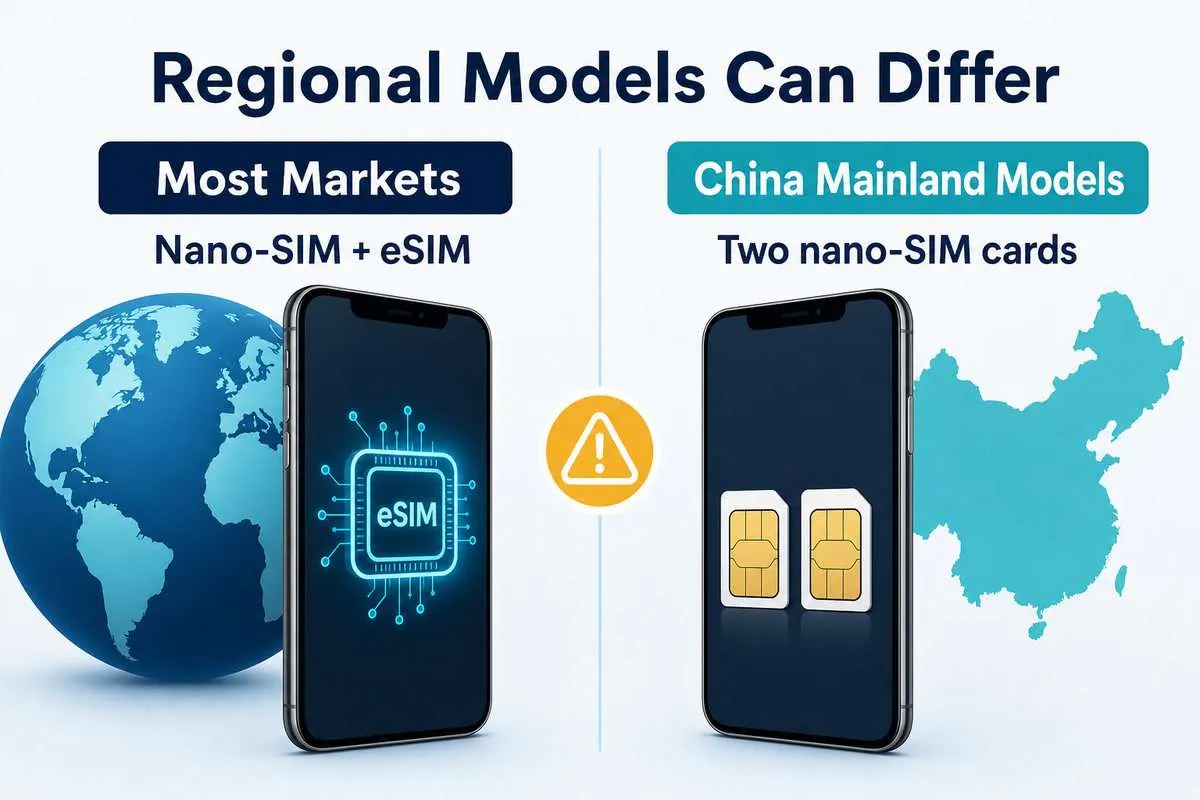
iPhone 11, iPhone 11 Pro and iPhone 11 Pro Max units purchased in China mainland, Hong Kong or Macao use two physical nano-SIM cards and do not provide the standard iPhone 11 eSIM configuration. Apple lists these models in its official Dual SIM with two nano-SIM cards guide.
Changing the phone’s region, language or Apple Account country cannot change its SIM hardware. If you are unsure where a used phone was originally sold, check the EID and Add eSIM menu instead of relying on the seller’s description.
For another device, use the Ezigo eSIM device compatibility checker before purchasing.
How Dual SIM works on the iPhone 11
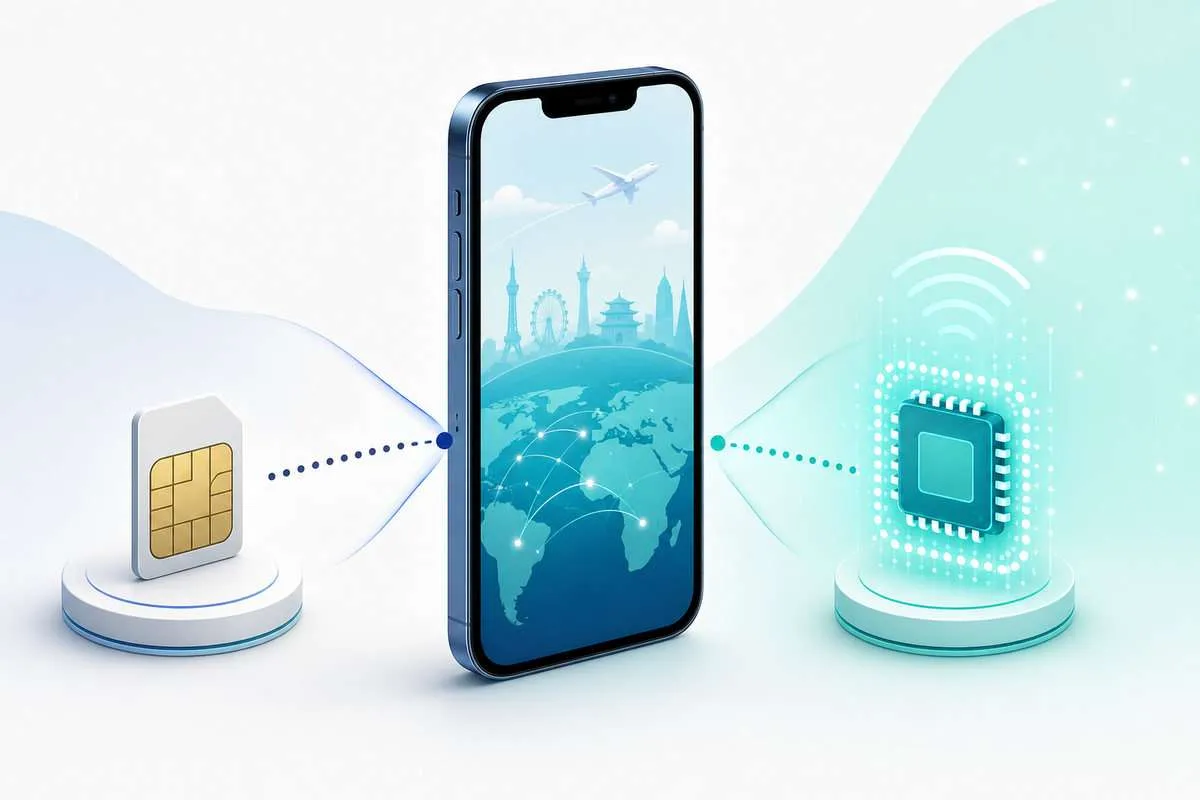
The iPhone 11 uses Dual SIM Dual Standby. Both lines can remain registered while the phone is idle, but the phone uses only one cellular-data line at a time. During a call, availability on the other line can depend on carrier support, Wi-Fi Calling and the Allow Cellular Data Switching setting.
Home line
Keep your usual number available for calls, SMS, iMessage and account verification when needed.
Travel line
Select the travel eSIM for cellular data and follow its activation and roaming instructions.
Turn off Allow Cellular Data Switching if you do not want the iPhone to move data back to the home line automatically. Also check your home carrier’s roaming charges: keeping a line switched on can still lead to call, voicemail or messaging fees depending on that carrier’s policy.
How to install and activate an eSIM on iPhone 11
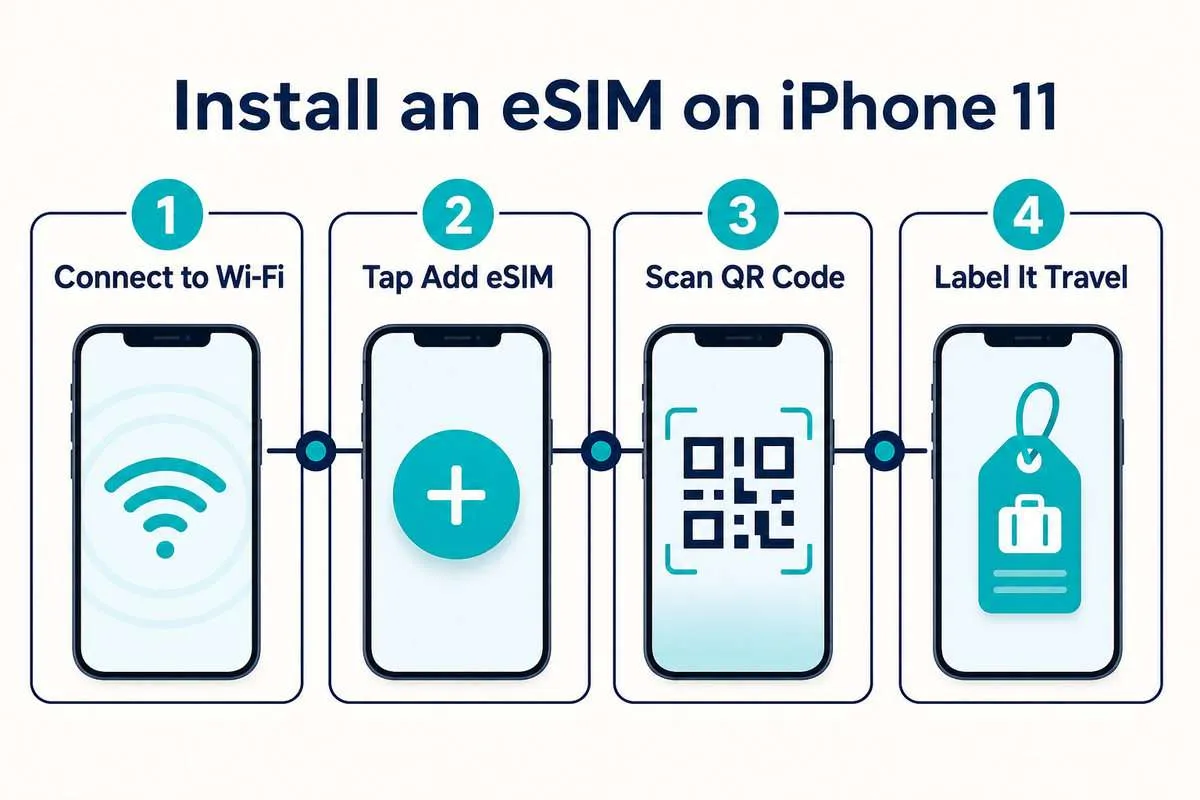
Install the plan while you have reliable Wi-Fi. Before starting, confirm that the phone is unlocked, the plan covers the destination and you understand when its validity begins.
- Open Settings > Cellular/Mobile Data > Add eSIM.
- Tap Use QR Code and scan the code supplied by the provider.
- Follow the prompts to download the cellular plan.
- Label the line Travel so it is easy to recognize later.
- At the destination, turn the line on and select it under Cellular Data.
If scanning is unavailable, the provider may supply an SM-DP+ address and activation code for manual entry. For more detail, follow the complete eSIM installation guide.
Do not delete an installed travel eSIM while troubleshooting. Many QR codes are one-time download credentials. If a profile is deleted, the original code may not install it again.
How to keep your number and use an iPhone 11 eSIM for travel data
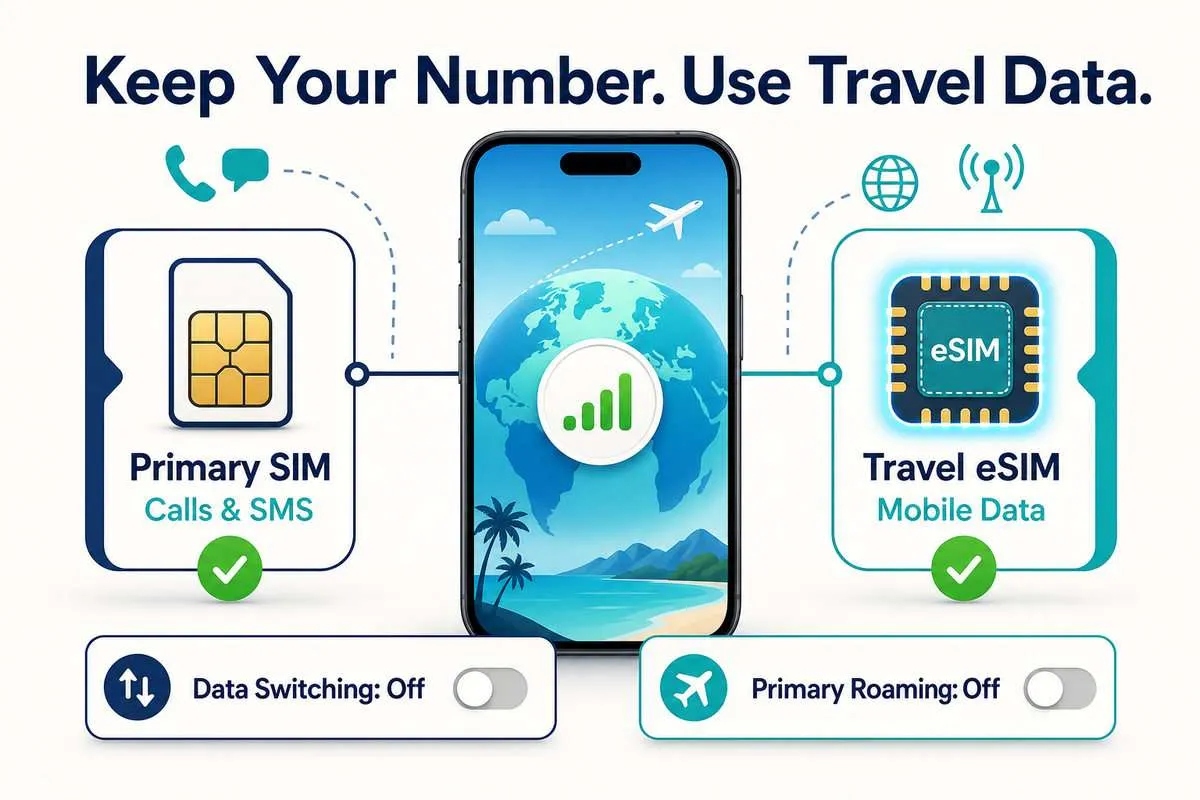
Installing an eSIM does not remove the physical SIM. A careful travel setup keeps the familiar number available while preventing the home line from becoming the default data connection.
- Keep the physical SIM selected as the default voice line if you still need that number.
- Select the travel eSIM under Cellular Data.
- Turn off Allow Cellular Data Switching.
- Turn off Data Roaming on the home line.
- Turn on Data Roaming on the travel line when the provider requires it.
All currently sold Ezigo eSIM travel plans require Data Roaming on the eSIM line at the destination. Their validity begins when the plan first connects to a supported destination network, so the profile can be installed over Wi-Fi before departure. Read when Data Roaming should be on or off; your home carrier’s roaming policy remains separate.
WhatsApp normally keeps the number already registered in the app. iMessage and FaceTime may ask you to confirm which number or email address should be used after a new cellular plan is added, so review those prompts rather than accepting them automatically.
iPhone 11 eSIM not working? Diagnose the stage that failed
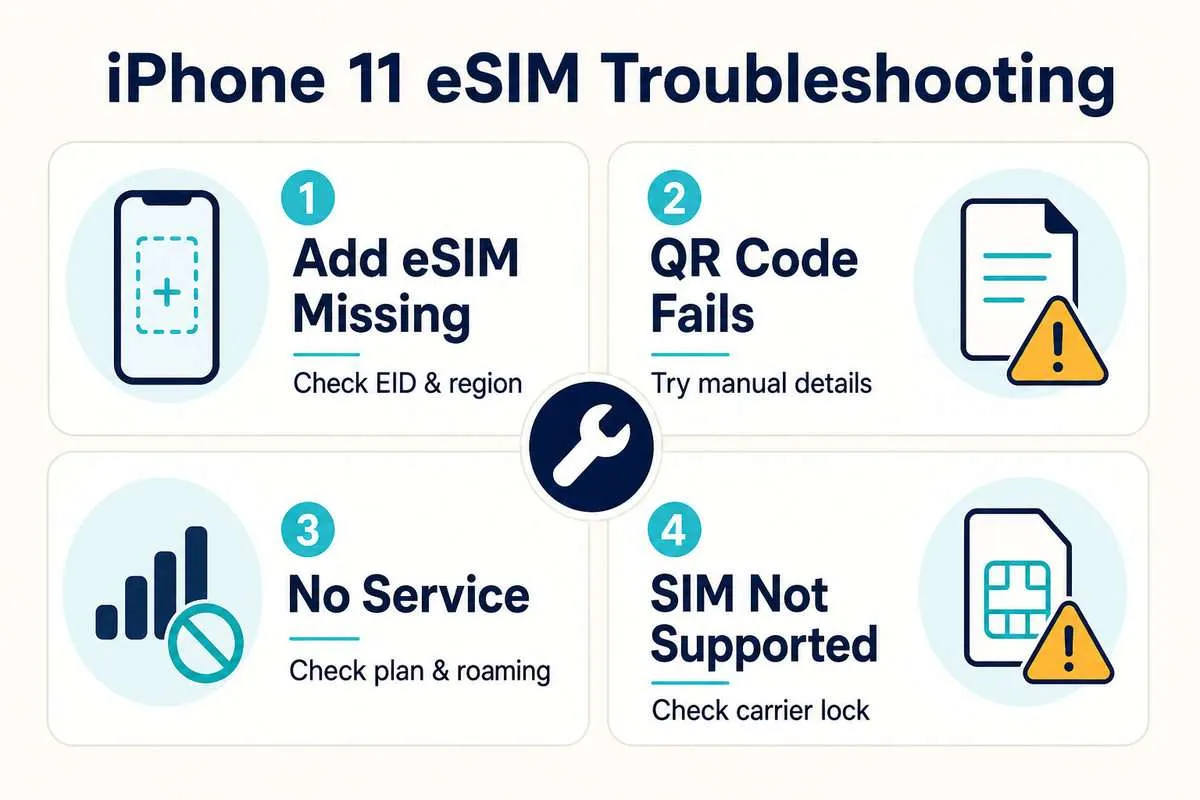
| Symptom | Likely check | What to do |
|---|---|---|
| Add eSIM is missing | Regional hardware, iOS or device management | Check EID, update iOS, restart and confirm the original sales region. |
| SIM not supported | Carrier lock | Check Carrier Lock and contact the carrier that locked the phone. |
| QR code is invalid or used | One-time download already consumed | Do not keep rescanning or delete an installed profile; contact the provider. |
| Installed but no service | Destination, line status or network selection | Confirm coverage, turn the line on, use Automatic network selection and restart. |
| Signal but no internet | Wrong data line, Data Roaming or APN | Select the eSIM for cellular data, enable its Data Roaming and check provider instructions. |
If the problem remains, keep the eSIM installed and record the exact error message. The eSIM troubleshooting checklist separates installation, signal and mobile-data failures in more detail.
Frequently asked questions about iPhone 11 eSIM support
Does the iPhone 11 have eSIM?
Yes. Most iPhone 11 models support one active eSIM alongside a nano-SIM. Models purchased in China mainland, Hong Kong or Macao are the main regional exception because they use two physical nano-SIMs.
Do the iPhone 11 Pro and iPhone 11 Pro Max support eSIM?
Yes, in most markets. The same regional and carrier-lock checks apply to the iPhone 11 Pro eSIM and iPhone 11 Pro Max eSIM configurations.
Can an iPhone 11 use two eSIMs at the same time?
No. It can use one physical nano-SIM and one active eSIM together. Two active eSIMs require a later iPhone generation that supports that configuration.
Can I use a travel eSIM on a locked iPhone 11?
A locked iPhone may accept only plans from the carrier that locked it. To use a travel eSIM from another provider, Carrier Lock should normally show No SIM restrictions.
Will adding an eSIM change my phone number?
Adding a data-only travel eSIM does not replace the number on your physical SIM. You choose which line handles calls, messages and cellular data. Some apps may ask you to confirm their preferred number after setup.
Does iPhone 11 eSIM support 5G?
No. The iPhone 11 generation supports 4G LTE but does not contain 5G radio hardware. A 5G-capable eSIM plan will still connect only through network technologies supported by the phone.
Final iPhone 11 eSIM checklist
- Add eSIM appears under Cellular or Mobile Data.
- An EID appears under Settings > General > About.
- Carrier Lock says No SIM restrictions.
- The plan covers the correct destination and travel dates.
- You know when validity starts and whether Data Roaming must be enabled.
- You will not delete the profile unless support instructs you to do so.
Once these checks pass, the iPhone 11 eSIM setup is straightforward: install the plan over Wi-Fi, keep the home SIM for the services you still need, and route travel data through the eSIM after arrival.
Ready to choose a travel plan?
Compare destination coverage, validity, data allowance, hotspot support and speed rules before buying.
High-speed data, wherever your journey leads
Enjoy instant, secure mobile data with Ezigo eSIM in 200+ destinations. No physical SIM needed.