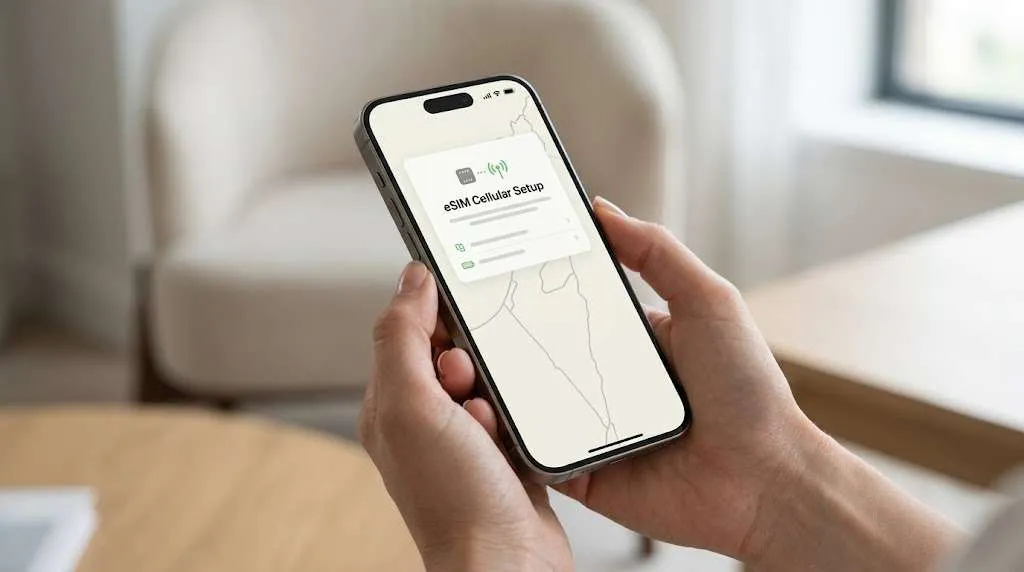

eSIM not working? First identify the failed stage: installation, network registration, or mobile data. Check the line, data SIM, roaming and APN in that order. Do not delete the eSIM as a first step—many travel profiles cannot be restored with the same QR code.
Start here: which eSIM problem do you actually have?
The phrase “eSIM not working” covers different failures. Match the visible symptom before changing settings: an invalid QR code, “No Service,” or signal with no internet needs a different fix.
| What you see | Most likely stage | Check first |
|---|---|---|
| “Code is no longer valid,” “already used,” or the QR code will not download | Installation | Is the eSIM already stored under SIMs or Cellular? |
| “Unable to activate eSIM” during setup | Installation or device eligibility | Wi-Fi, software, eSIM compatibility, and carrier lock |
| “Activating,” “No Service,” or “Searching” before departure | Destination registration | Whether the plan activates only at the destination |
| “No Service” after arrival | Network registration | Line switch, coverage, and network selection |
| Signal bars or 4G/5G, but apps do not load | Data connection | Default data SIM, Data Roaming, APN, and plan balance |
| It worked earlier and then stopped | Plan or local network | Remaining data, validity, coverage, and outage |
| Data works, but calls or SMS do not | Plan capability | Whether the plan is data-only |
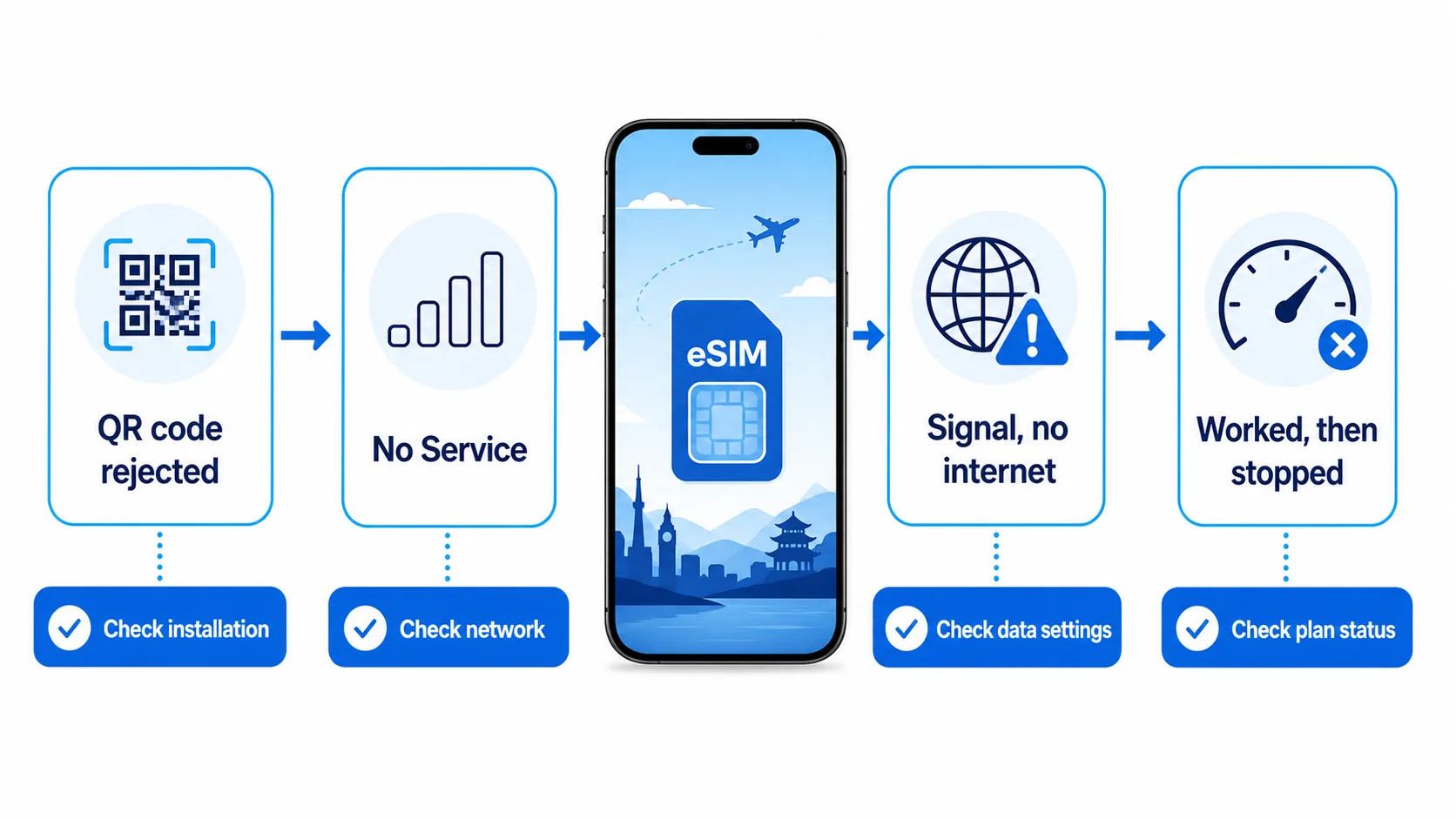
Start with the narrowest branch that matches what you see. This avoids changing APN, network or profile settings before you know which part failed.
Why is my eSIM unable to install or activate?
In this guide, installation means downloading and storing the carrier profile. Activation or connection means that the profile becomes usable and registers on a supported network. Depending on the provider, these events may happen together or at different times. A profile can therefore be installed at home but show “No Service” until it reaches the destination.
The QR code says it has already been used
For an “eSIM not working” case that begins with a rejected QR code, first determine whether installation already succeeded. Many travel eSIM QR codes are single-use download credentials. Once the profile has downloaded, scanning the same code again may produce messages such as “This code is no longer valid” or “The eSIM has already been used.”
Before contacting support:
- On iPhone, open Settings > Cellular (or Mobile Service) and look for the new plan.
- On Android, open Settings > Network & internet > SIMs, or Settings > Connections > SIM manager on Samsung.
- Look for a recently added line. It may use a generic label such as “Travel,” “Business,” “Secondary,” or a network name.
- If the line exists, stop scanning. Rename the line if needed, then continue with the activation and data checks below.
If the profile is not present and the QR is rejected, do not keep rescanning it on different phones. Save the exact error message and contact the provider.
The phone says “Unable to activate eSIM”
When the symptom is “eSIM not working” alongside “Unable to activate,” start with the download requirements. For an iPhone, Apple’s current troubleshooting guidance says the device normally needs a Wi-Fi network or hotspot, an active eSIM plan, and the latest iOS version it supports. Apple then recommends toggling Airplane Mode, turning the affected line off and on, restarting, and checking for a carrier settings update under Settings > General > About.
Use this sequence:
- Connect to stable Wi-Fi. Do not rely on the eSIM that has not yet activated.
- Confirm the phone supports eSIM and is not carrier-locked.
- Update the operating system if an update is available and you can do so safely before travel.
- Toggle Airplane Mode on for about 10 seconds, then off.
- Restart the phone.
- Check whether the eSIM now appears in the SIM or Cellular list.
On Google Pixel, the official setup path is Settings > Network & internet > SIMs > Add SIM > Set up an eSIM. On Samsung Galaxy, Samsung documents Settings > Connections > SIM manager > Add eSIM. Menu names can vary by Android version and phone maker.
Check compatibility and carrier lock before blaming the QR code
An eSIM-compatible model can still be ineligible if that regional variant lacks eSIM support or the phone is locked to a home carrier. On iPhone, open Settings > General > About and find Carrier Lock. “No SIM restrictions” indicates an unlocked device.
Use the Ezigo eSIM device compatibility checker before purchase or installation. Owners of older Apple models can also review whether iPhone 11 supports eSIM and which restrictions matter.
Why does my eSIM show “Activating” or “No Service” before I travel?
An “eSIM not working before travel” report does not automatically mean the profile is defective. A destination eSIM may be installed before departure but cannot register until the phone reaches a supported partner network.
For Ezigo eSIM, plan validity starts when the eSIM first connects to a supported network at the destination. Installing it in advance does not by itself start the validity period. The practical approach is:
- Install while you still have reliable Wi-Fi.
- Leave the travel line off if you do not need it yet.
- Keep the QR email and plan instructions accessible offline.
- Turn the line on after arrival.
- Select it for mobile data and enable Data Roaming on that travel line.
The important distinction is installed versus connected. An installed profile appears in Settings. A connected profile has registered with a supported network and shows usable service.
How do I fix an eSIM with no service after arrival?
For an “eSIM not working after arrival” report, “No Service” means the phone has the profile but has not registered successfully with a local network.
1. Turn the eSIM line on
On iPhone, open Settings > Cellular/Mobile Service, tap the travel eSIM, and enable Turn On This Line. On Samsung, open SIM manager and enable the eSIM. On Pixel, open SIMs, select the eSIM, and enable Use SIM.
This sounds basic, but it is a distinct failure: the eSIM may be fully installed while its line switch remains off. In that state, the phone will not display signal for the plan.
2. Confirm you are inside the plan’s coverage area
Check the destination and coverage shown in your order. A country plan will not normally connect in the departure country, and some regional plans use specific partner networks rather than every operator shown on the phone.
3. Refresh network registration
Toggle Airplane Mode on, wait about 10 seconds, and turn it off. If the eSIM still shows no service, restart the phone. These actions force a new registration attempt without deleting the profile.
4. Try manual network selection only when needed
Leave Network Selection on Automatic first. If Automatic repeatedly selects an unsupported operator or never registers, turn it off and choose a network listed in the plan instructions. Try only the supported networks; selecting every visible operator at random does not improve the profile.
If no supported network registers after these steps, capture the screen and contact support. The provider may need to check the plan status or upstream data route.
Why does my eSIM have signal but no internet?
For “eSIM not working but showing signal,” the line can usually see or register with a network, but mobile data may not be routed through it. This is the common “eSIM connected but no internet” situation. Work through the following checks in order.
Select the travel eSIM for Mobile Data
Dual-SIM phones can keep the home SIM active for calls while using the travel eSIM for data. The mistake is leaving Mobile Data assigned to the home SIM.
On iPhone, open Settings > Cellular/Mobile Service > Cellular Data and select the travel eSIM. On Android, open SIMs or SIM manager, find the preferred SIM section, and select the travel eSIM for mobile data.
To avoid accidental home-carrier roaming charges, disable Data Roaming on the home SIM. Consider disabling Allow Cellular Data Switching unless you intentionally want the phone to fall back to the other line.
Enable Data Roaming on the travel eSIM
Travel eSIMs commonly connect through roaming agreements with local networks. This means Data Roaming usually needs to be on for the travel eSIM, even though you may keep it off for your home SIM.
On iPhone:
- Go to Settings > Cellular/Mobile Service.
- Tap the travel eSIM.
- Open Cellular Data Options if shown.
- Turn Data Roaming on.
On Samsung, go to Settings > Connections > Mobile networks > Data roaming. On other Android phones, look under Network & internet > SIMs > [travel eSIM] > Roaming.

Check the APN without guessing
The Access Point Name (APN) is the network path used for mobile data. A missing or incorrect APN can produce a frustrating symptom: the phone shows signal, but websites and apps do not load.
Many recent phones read the APN automatically from the eSIM. However, some Android models, older software, or roaming combinations require manual entry. There is no single Ezigo eSIM APN for every plan; the correct value depends on the supplied profile and network.
Follow these rules:
- Check the order email or installation instructions for an APN.
- If no manual APN is specified, leave the automatically supplied value unchanged.
- Do not try generic values such as “internet” just because they appear in an online forum.
- Do not change username, password, proxy, MCC, or MNC unless the plan instructions explicitly provide them.
- After entering a required APN, save it, select it, and restart mobile data.
Apple warns that an incorrect APN can remove mobile-data connectivity or create additional charges. Some iPhones do not expose the APN menu because the carrier profile controls it; in that case, contact the eSIM provider.
Pause VPN or custom DNS while testing
If the eSIM is selected, roaming is enabled, and the phone still has no usable internet, briefly pause a VPN, private DNS, or filtering profile and test again. These tools can affect traffic routing; restore them after the connection works.
Check whether the data or validity has ended
If the eSIM worked and then suddenly stopped, check the remaining data and expiry before changing device settings. A fixed-data plan may stop when its allowance reaches zero. A validity-based plan may stop when its active period ends. Poor local coverage or a temporary network outage can create the same symptom, so also try a different location and toggle Airplane Mode once.
Reset network settings only as a last resort
Use a network-settings reset only after the plan, line, roaming, APN and coverage checks fail. It can remove saved Wi-Fi networks, VPN settings and other network preferences, so note anything you need before confirming the reset. It does not replace the eSIM-specific support check, and it is not a reason to delete the eSIM profile.
iPhone eSIM not working: the key menu paths
Use the symptom-specific steps above first. On iPhone, the settings you will use most often are:
- Line: Settings > Cellular/Mobile Service > travel eSIM > Turn On This Line.
- Data: Settings > Cellular/Mobile Service > Cellular Data > travel eSIM.
- Roaming: travel eSIM > Cellular Data Options > Data Roaming.
- Carrier update: Settings > General > About; accept an update if offered.
If activation still fails, record the exact error and send device details only through the provider’s official support channel. Never post your QR code publicly.
Android eSIM not working: the key menu paths
Android labels vary by brand, but the same checks apply. On Samsung, start at Settings > Connections > SIM manager. On Google Pixel, start at Settings > Network & internet > SIMs.
- Confirm the eSIM is present and enabled.
- Set it as the preferred SIM for mobile data.
- Enable roaming for the travel eSIM and keep it off on the home SIM if required.
- Check the plan-specific APN only if data still fails.
- Use Network operators for manual selection only when Automatic does not register.

Why do data, calls, iMessage or WhatsApp behave differently?
Most travel eSIM plans are data-only, although selected Ezigo eSIM plans include calls or SMS. Check the product details rather than assuming the eSIM has a phone number.
For a data-only plan:
- Mobile internet, maps, email, and internet calls can work.
- Normal carrier voice calls and SMS are not included unless the plan says otherwise.
- WhatsApp normally remains registered to the number you already use. Installing a data eSIM does not require changing the WhatsApp number.
- iMessage and FaceTime can continue using your usual number or Apple Account, but iPhone may ask which line to use. Review Settings > Apps > Messages > Send & Receive if contacts see an unexpected sender.
Do not accept a prompt to change a messaging number unless you understand the effect. Choosing a travel line for mobile data is separate from moving your messaging identity.
Should I delete and reinstall an eSIM that is not working?
Usually, no. Deletion is not the same as turning a line off.
For Ezigo eSIM, the original QR code normally cannot be reused after the profile has been downloaded. If you remove the profile, you cannot restore it yourself by scanning the same QR code. Device-to-device transfer is also not supported by every travel profile.
Do not delete the eSIM while troubleshooting unless Ezigo eSIM support specifically tells you to. First take screenshots, record the ICCID if available, and preserve the original order email.
If you changed phones, deleted the profile, or need a new download credential, contact support before purchasing a replacement. Whether a replacement or transfer is possible depends on the plan and supplier.
When should I contact Ezigo eSIM support?
If the “eSIM not working” issue remains after the symptom-specific checks, contact support when:
- the QR code is rejected and the eSIM is not present in Settings;
- you deleted the eSIM or need to move it to another phone;
- the phone is compatible and unlocked, but activation still fails;
- the line is on, the required roaming/APN settings are correct, but there is still no service or data;
- payment succeeded but the QR email did not arrive;
- you need help with a refund, reset, or failed add-on.
Send the following evidence through the Ezigo eSIM contact form or email [email protected]:
- Order number, destination, phone model and operating-system version.
- The exact error message and when the problem started.
- A screenshot of the SIM/Cellular list, selected Mobile Data SIM and roaming setting.
- The APN page on Android when the symptom is “signal but no internet.” Send ICCID, EID or IMEI only if support requests it.

Crop screenshots to remove unrelated phone numbers, notifications, and personal information. Never share the QR code on a public forum. Before removing a profile or requesting a refund, review the Ezigo eSIM refund policy and terms of service.
Frequently asked questions
Should Data Roaming be on for an eSIM?
For most travel eSIMs, yes: enable Data Roaming on the travel eSIM because it connects through a partner network. Keep roaming off on your home SIM unless your home plan includes roaming and you intend to use it.
Why is my eSIM unable to activate before I reach the destination?
The profile may already be installed but unable to register on a supported network in your departure country. Ezigo eSIM validity starts on the first connection to a supported destination network. Confirm the line is listed in Settings, then complete the network and data steps after arrival.
Can I scan an eSIM QR code twice?
Usually not after a successful download. First check whether the eSIM is already stored on the phone. If the QR is rejected and the profile is absent, contact support rather than repeatedly scanning it on other devices.
Can I reinstall an eSIM after deleting it?
Do not assume so. The original Ezigo eSIM QR code is normally single-use, so a deleted profile cannot be self-restored with that code. Contact support to determine whether a replacement profile is possible.
Why does my eSIM have bars but no internet?
The most common checks are the selected Mobile Data SIM, Data Roaming on the travel line, the plan-specific APN, and remaining data or validity. Signal bars alone do not confirm that data is routed through the eSIM.
Final check before you ask for help
Confirm the eSIM is present, its line is on, it is selected for mobile data, the required roaming setting is on, and the plan is still valid. Then toggle Airplane Mode once. If the symptom remains, stop changing settings and contact support with screenshots.
For setup instructions before departure, use the Ezigo eSIM installation guide.
High-speed data, wherever your journey leads
Enjoy instant, secure mobile data with Ezigo eSIM in 200+ destinations. No physical SIM needed.